Isaac Sim URDF Import Troubleshooting Notes
This note documents the troubleshooting process for importing jaka_zu3.urdf into Isaac Sim, with the goal of generating a usable USD robot model.
0. Prerequisites
The local directory structure used in this article is as follows:
jaka_zu3/
├── jaka_zu3.urdf
└── meshes/
    └── jaka_zu3_meshes/
        ├── Link_0.STL
        ├── Link_1.STL
        ├── Link_2.STL
        ├── Link_3.STL
        ├── Link_4.STL
        ├── Link_5.STL
        └── Link_6.STL
1. Basic Import Workflow
1.1 Enable the URDF Importer
In Isaac Sim, open:
Window -> Extensions- Search for and enable
isaacsim.asset.importer.urdf
1.2 Open the Import Window
Go to:
File -> Import
Then select jaka_zu3.urdf.
1.3 Initial Import Parameters
It is recommended to start with the following conservative settings:
Referenced ModelStatic BaseDefault Density = 1000- For the first import, disable:
Collision From VisualsAllow Self-Collision
- If the model contains mimic joints, you may first enable:
Ignore Mimic
1.4 Set the USD Output Directory (Optional)
The URDF Importer can only select an output directory and cannot directly name the USD file. Isaac Sim will automatically generate the following structure:
output_directory/URDF_filename/URDF_filename.usd
For example, if the output directory is set to:
~/robot-assets/isaac_assets/
then the generated file will usually be:
~/robot-assets/isaac_assets/jaka_zu3/jaka_zu3.usd
2. Main Issues and Fixes
This import failure mainly involved the following types of problems:
- Old files already existed in the USD output directory
- mesh files were missing or the directory structure did not match
- The mesh path syntax in the URDF was incorrect
- File extension case did not match on Linux
- STL models themselves do not contain material information
2.1 USD Output Path Conflict
The following error appeared during the initial import:
A layer already exists with identifier '.../jaka_zu3.usd'
Cause:
A USD file with the same name already existed in the target path. The Importer calls CreateNew and does not directly overwrite existing files.
Fix: Delete the old output directory or the old USD file before importing again. For example:
rm -rf ~/robot-assets/isaac_assets/jaka_zu3
2.2 URDF Present but mesh Missing
Initially, the directory only contained:
jaka_zu3.urdf
If the mesh files are missing, the import may fail easily, or the imported model may appear empty.
Fix: Download the mesh files from the JAKA ROS2 repository. The required directory is:
src/jaka_description/meshes/jaka_zu3_meshes
2.3 mesh Directory Structure Does Not Match the URDF References
The paths referenced in the URDF must match the local directory structure exactly; otherwise, the URDF source paths need to be changed.
The local directory structure used in this article is as follows:
jaka_zu3/
├── jaka_zu3.urdf
└── meshes/
    └── jaka_zu3_meshes/
        ├── Link_0.STL
        ├── Link_1.STL
        ├── Link_2.STL
        ├── Link_3.STL
        ├── Link_4.STL
        ├── Link_5.STL
        └── Link_6.STL
If the local directory hierarchy does not match the references in the URDF, the Importer will still fail to resolve the assets correctly even if the files have already been downloaded.
2.4 Incorrect package:// Syntax
The URDF initially used the following syntax:
<mesh filename="package://meshes/jaka_zu3_meshes/Link_0.STL"/>
This syntax is incorrect in the current scenario.
Cause:
package:// refers to a ROS package path rather than a normal local relative path. package://meshes/... effectively means that there is a ROS package named meshes, but in this case it is only a local folder, not a ROS package.
Safer syntax: If you are importing directly from a local directory into Isaac Sim, it is recommended to use a path relative to the directory where the URDF file is located:
<mesh filename="meshes/jaka_zu3_meshes/Link_0.STL"/>
2.5 File Name Case Mismatch on Linux
This was the easiest issue to overlook during troubleshooting, but also the one with the largest impact.
The actual file names on disk were:
Link_0.STLLink_1.STL- …
But the URDF initially used:
Link_0.stlLink_1.stl
On Linux, Link_0.stl and Link_0.STL are two different files. As a result, the Importer could not find the mesh and eventually reported:
RuntimeError: Used null prim
Fix:
Change all .stl extensions in the URDF to .STL so they match the actual file names on disk exactly.
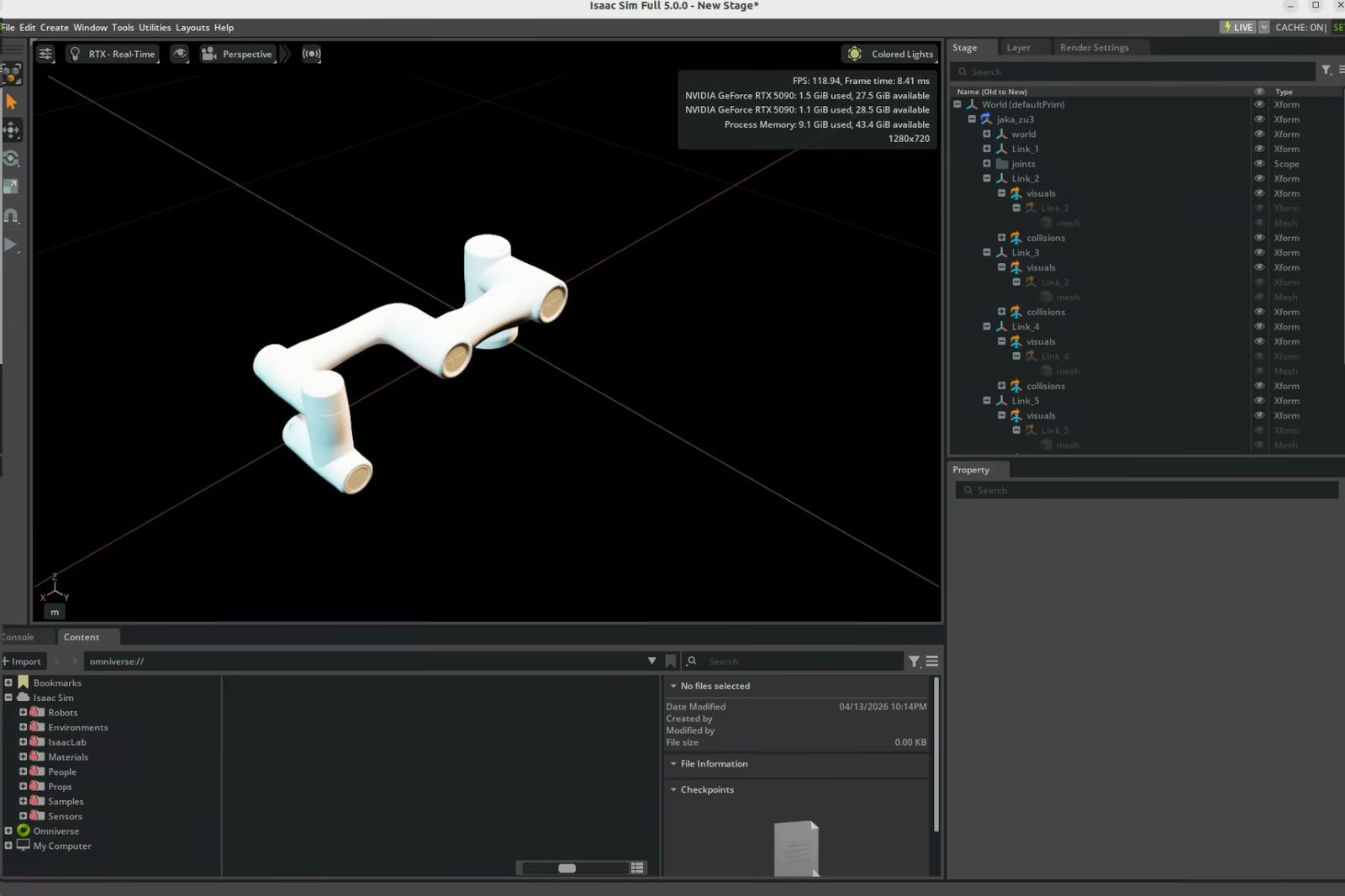
2.6 STL Does Not Contain Materials, So the Imported Model Appears White
After a successful import, the robot model appeared entirely white.
Cause:
The ROS model provided by JAKA only includes .STL files and does not include:
.dae.fbx- textures
- material files
STL contains only geometry data and does not contain real material information.
Conclusion: A white model does not mean the import failed. It is the normal result of the file format lacking material information.
3. Working Example of URDF mesh Syntax
<visual>
  <origin xyz="0 0 0" rpy="0 0 0" />
  <geometry>
    <mesh filename="meshes/jaka_zu3_meshes/Link_0.STL" />
  </geometry>
</visual>

<collision>
  <origin xyz="0 0 0" rpy="0 0 0" />
  <geometry>
    <mesh filename="meshes/jaka_zu3_meshes/Link_0.STL" />
  </geometry>
</collision>
The key points are:
- Do not use
package:// - The path must match the local directory exactly
- The file extension case must match exactly
4. Additional Notes After a Successful Import
4.1 Color and Materials
Since STL does not contain materials, if you want to adjust the appearance after import, you need to assign materials manually in Isaac Sim, for example:
- Create
OmniPBR - Modify
Albedo / Base Color - Bind the material to the corresponding link or to the entire robot
4.2 If You Want to Preserve the Real Appearance
You need to use formats that support material information, such as:
.dae.fbx.usd
If the official repository only provides STL files, then materials must be recreated manually in Isaac Sim or Blender.