Isaac Sim (pip) and Isaac Lab (Source) Installation
This note records a reproducible installation workflow for Isaac Sim and Isaac Lab, where:
Isaac Simis installed viapipIsaac Labis installed viagit clone
Versions used in this note:
Isaac Sim5.1.0Isaac Lab2.3.2Python3.11
Reference documentation:
1. Create the Python environment
First create and activate a new Conda environment. The Python version must match the Isaac Sim version. This note uses Python 3.11:
conda create -n env_isaaclab python=3.11
conda activate env_isaaclab
Then update the system package index and upgrade pip:
sudo apt update
pip install --upgrade pip
2. Install PyTorch
Install the CUDA version of PyTorch specified by the official documentation. The following command is for cu128, which applies to an RTX 5090 setup:
pip install torch==2.7.0 torchvision==0.22.0 --index-url https://download.pytorch.org/whl/cu128
3. Install Isaac Sim via pip
Run the following command to install Isaac Sim:
pip install "isaacsim[all,extscache]==5.1.0" --extra-index-url https://pypi.nvidia.com
After installation, run the following command to verify it:
isaacsim
On first launch, you will be prompted to accept the NVIDIA Omniverse license agreement. Enter Yes in the terminal:
By installing or using Isaac Sim, I agree to the terms of NVIDIA OMNIVERSE LICENSE AGREEMENT (EULA) in https://docs.isaacsim.omniverse.nvidia.com/latest/common/NVIDIA_Omniverse_License_Agreement.html
Do you accept the EULA? (Yes/No): Yes
4. Install Isaac Lab via git clone
Important: the versions of Isaac Sim and Isaac Lab must match. This note uses Isaac Sim 5.1.0 and Isaac Lab 2.3.2.
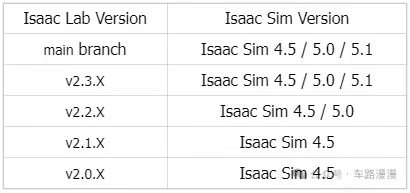
Clone the Isaac Lab repository in your working directory. In practice, you may choose the corresponding version according to the Release page:
git clone https://github.com/isaac-sim/IsaacLab.git
cd IsaacLab
If needed, you can inspect the helper script usage with:
./isaaclab.sh --help
Then install the required dependencies for Isaac Lab and run the installer:
sudo apt install cmake build-essential
./isaaclab.sh --install
5. Verify the installation
After installation, you can first run the official minimal example:
./isaaclab.sh -p scripts/tutorials/00_sim/create_empty.py
You can also run it directly with Python in the current virtual environment:
python scripts/tutorials/00_sim/create_empty.py
If you want to further verify the training pipeline, run the official reinforcement learning example:
./isaaclab.sh -p scripts/reinforcement_learning/rsl_rl/train.py --task=Isaac-Ant-v0 --headless
If the commands run normally, the simulator should launch and display a black viewport window. If the window opens correctly, the base installation of Isaac Sim and Isaac Lab is complete.
6. Notes
- The first launch of
isaacsimmay be slow, which is usually related to cache initialization and extension loading. - The versions of
Isaac SimandIsaac Labmust remain compatible. Before upgrading either component, it is recommended to verify the official compatibility information first.